
In Boost Express, campaigns let you advertise your company as part of a larger event.
They run within an event workspace and help you reach the event’s audience with your own message.
You can create a campaign from the event workspace or the global Campaigns tab.
Getting ready to create a campaign
Tip: Campaigns stay in Draft until you publish them, so you can safely experiment with settings, and no budget is used until the campaign is active.
To start a campaign, you’ll need an Active event and a landing page, which can be created during setup.
Audiences are managed by the event organizer and become available as they’re added to the event.
1. Open the campaign wizard
You can create a new campaign in two ways:
-
From inside an event workspace:
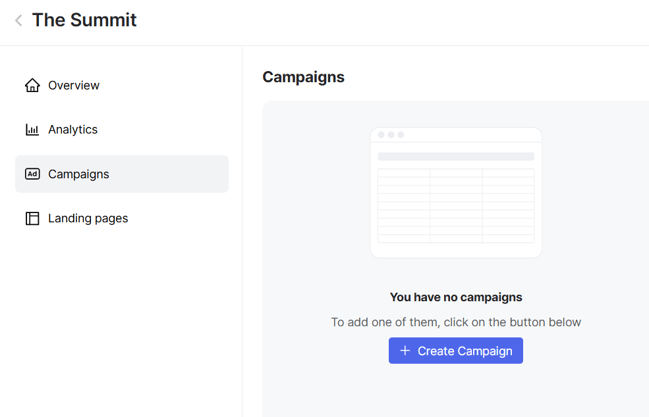
Go to My events, select the event, open the Campaigns tab, and click + Create Campaign.
-
From the global Campaigns section in the sidebar:
Click + Create Campaign, then choose the event during the first step of setup.

2. Set up your campaign
The campaign settings screen includes multiple sections on a single page.
You can complete them in any order and make changes before publishing.
Name your campaign
Edit the title at the top of the screen to help identify your campaign later.

Choose a goal
Your campaign goal tells the platform what type of result you care about most.
This helps prioritize how your ads are delivered and which users are more likely to see them.
- Reach — maximizes the number of views to improve visibility and brand recognition
- Clicks — focuses on driving traffic to your landing page
- Conversions — focuses on encouraging visitors to complete actions that signal interest in your offer
- Engagement — focuses on interactions with the ad itself, including reactions, comments, and shares
Select a landing page
Every campaign needs a landing page — this is the page users see after clicking your ad.
You can select one of the pages already created in the event workspace, or build a new one during setup.

Landing pages are created and managed inside Boost Express using a built-in editor.
You can start from a blank layout or use a prebuilt template, and adjust content to match your campaign message.
Pick an audience
Audiences define who will see your ads. In Boost Express, they are managed by the event organizer and based on uploaded contact data or user behavior on the event website. If any audiences have been added to the event, you’ll be able to choose from them here.

Define conversions
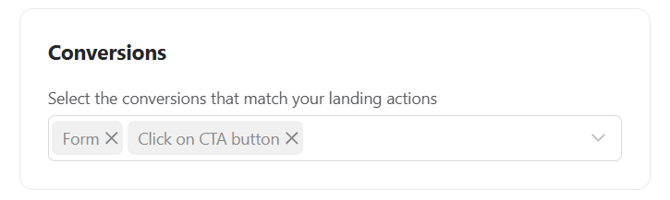
Choose the key actions on your landing page that matter for your campaign.
This helps define what types of user interactions you aim to encourage.
Set campaign dates
Choose when your campaign should run. Your ads will only be shown during this period.
The default option is to start immediately and run continuously, but you can set specific start and end dates if needed.

You can pause or stop the campaign at any time, even if the end date has not been reached.
Set your budget and bidding
Your campaign has three key budget settings:
- Daily budget – the average amount you want to spend per day. On high-traffic days, actual spending may slightly exceed this value to maintain delivery.
- Total limit – the maximum amount your campaign can spend overall. This is a strict cap and will not be exceeded.
- Bidding model – the bidding type used, which may vary depending on your selected goal.
Bidding is handled automatically by the ad platform. Boost Express uses your settings to balance performance and cost.
To understand how spending is distributed, see the guide on how budgets are handled.
Save Campaign
After filling in the campaign settings, click Next to save the campaign as a draft.
You will then move on to setting up ad creatives, which are required to launch the campaign.
3. Manage campaigns
Once launched, the campaign will appear in your campaign list and be available for tracking and edits.
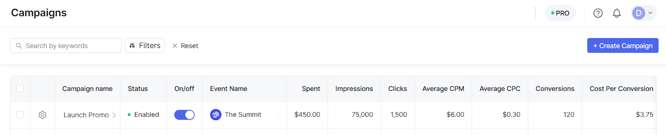
Each campaign in the list includes several fields. Status reflects the current state of the campaign, and On/off is a toggle to enable or pause it. Spent shows the total budget used so far.
For performance, there are three absolute metrics: Impressions show how many times the ad was displayed, Clicks count user interactions with the ad, and Conversions record completed target actions such as form submissions.
From these values, cost metrics are derived. Average CPM shows the cost per one thousand impressions, Average CPC reflects the average cost per click, and Cost per conversion indicates the average amount spent for each conversion.
Next Steps
- Add images or videos in сreatives — the part your audience will actually see.
- Measure results and optimise spend in Analytics.
- Track form submissions and other target actions in the Leads section.