
Audience is a group of participants defined by the organizer for sponsor targeting during a campaign.
Sponsors get better results when these groups are well-structured and clearly defined.
Boost Express gives organizers full control over how such groups are created and organized.
Audiences are formed based on participant data such as uploaded contact lists or activity on the event website. They can be arranged into catalogs to help sponsors find the right groups more easily.
A clear structure simplifies campaign setup, improves targeting accuracy, and reduces manual coordination. It also benefits the organizer by making sponsor messages more relevant to participants and better aligned with the goals of the event.
Audience hierarchy
Note: Each event can be linked to one catalog. All audiences from that catalog will be visible to sponsors.
| Element | Visible to Sponsors | Description |
|---|---|---|
| Catalog | No | Collection of audiences linked to a specific event. Includes a folder structure for grouping. |
| Folder | Yes | Way to organize related audiences within a catalog, often by theme or category. |
| Audience | Yes | Sponsor-facing group used for campaign targeting, based on one or more segments. |
| Segment | No | Set of internal rules that define who is included in an audience. Based on contact data or activity on the event website. |
1. Create a catalog
To create a new catalog, go to the Audiences section and open the Audience catalogs tab, or use the option in the event settings:

- Click Create catalog.
- Fill in the following fields:
- Name – used internally, not visible to sponsors.
- Description – helps your team understand the purpose of the catalog.

3. Click Continue.
On the next screen, organize your catalog by adding audiences and grouping them in a way that’s easy for sponsors to navigate:
- Click Add folder to create thematic or structural groupings such as Region, Industry, or Product interest. You can nest folders to create a deeper hierarchy.
- Use Add audience to insert audiences directly into the structure.

If you have already configured audiences, you can click My audiences to open the list and add them to the catalog.
Items can be moved between folders, renamed, or deleted as needed. This structure determines how sponsors will browse and select audiences when setting up campaigns.
Audiences without segments will be marked with a warning icon and will not be available to sponsors until segment rules are assigned. You can link segments to these audiences later during audience setup.
2. Create audiences
Audiences can be created either while configuring a catalog or directly in the Audiences tab.

- Click Create audience.
- Fill in the following fields:
- Name – shown to sponsors during campaign setup.
- Description – explains who is included in the audience.
- Segments – used to define which groups of participants are included in the audience.
3. Create segments
Segments are created and managed in the Segments tab.

- Click Create segment.
- Fill in the following fields:
- Name – used internally to identify the segment.
- Description – explains the logic behind the segment.
- Website visitors – track user activity on the event website.
- Contact & Company List – upload a file with attendee data.
- Integration – use data from an external system connected to your Boost Express account.
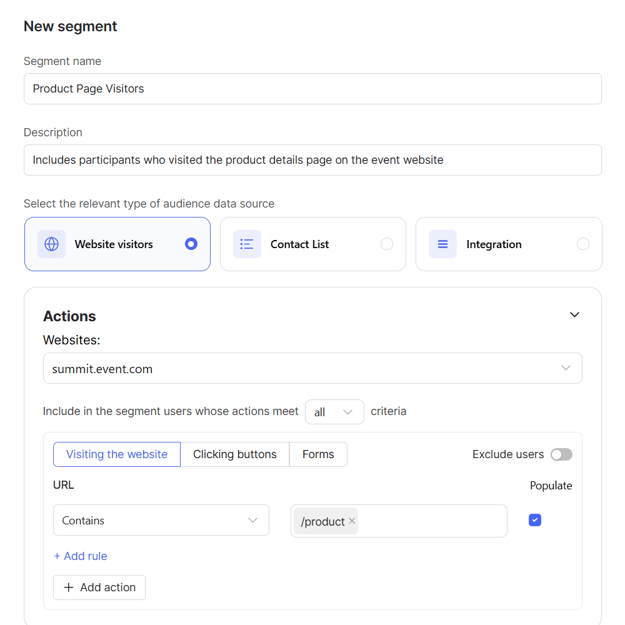
Website visitors
To use website-based conditions, make sure the tracking code is installed on the event website.
Under the Actions section, choose a website and specify which user actions should be included in the segment. You can select whether all or any of the conditions must be met. The following types of actions are available:
-
Visiting the website – people who visited the event website or specific pages.
-
Clicking buttons – people who clicked certain buttons on the site.
-
Forms – people who submitted specific forms.
You can combine multiple actions using Add action, and create additional rules within each action using Add rule. To exclude users who meet certain conditions, turn on the Exclude users toggle and define the exclusion rules the same way.
Contact & Company List
Use this option to create a segment from your own contact data, such as names, emails, and company details:
- Prepare a
.csv,.xls, or.xlsxfile. The file must include the following column headers:- name
- surname
- company
- Click Upload new file.
- Drag and drop the file into the upload area, or click Upload file to select it manually.
- Match each column to the appropriate field using the dropdowns.
Once the data is imported, the segment will be available to use in audience configuration.

Integration
This option lets you build audiences using data from an external system connected to your Boost Express account.
To use this data source, you need to set up an integration first:
-
Open Settings.
-
Go to Integrations.
-
Click Add integration and connect your account.
Once an integration is connected, it becomes available during segment creation. You can select the connected integration as a data source to start receiving audience data in Boost Express.
4. Link the catalog to your event
In the event workspace, open the Audience Catalog section and select the catalog you want to attach.

Once published, all audiences from this catalog become visible to sponsors when they create or edit campaigns.
FAQ
›︎ Can I reuse the same audience in different catalogs?
Yes. Once created, audiences can be added to any number of catalogs within the same event.
›︎ Can I link more than one catalog to an event?
No. Each event can have only one catalog. All sponsor-facing audiences must be organized within that catalog.
›︎ Can I update segments or restructure the catalog after linking it to an event?
Yes. You can modify segments, update audiences, and reorganize the catalog structure at any time. All changes will be reflected automatically in the sponsor view.