
Before sponsors can create ad campaigns, the event needs to be configured. The setup process includes eight steps that prepare the event for participation.
Note: To publish the event, all setup steps must be completed. You’ll see a checklist in the left panel to track your progress.
Accessing Event Settings
-
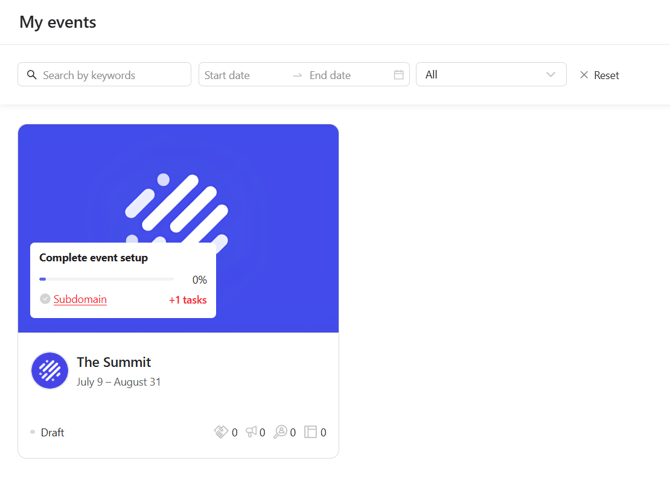
Open the My events tab from the left-hand menu.
-
Click on the event card to open its settings.
-
You will see a progress bar with 8 required steps: General, Subdomain, Ad accounts, Audience catalog, Landing page template, Creative templates, Tracking code, and Billing. You can complete these steps in any order.
1. General
In the General section, provide the core information about your event, including its name, dates, location, category, estimated number of participants, a short overview, and a link to the official event website.
-
Event logo
Upload the event logo as a square image in JPG or PNG format. The file size must not exceed 10 MB. -
Hero image
Add a banner image that will be displayed in the public workspace of your event.
Click Save to confirm your changes.
2. Subdomain
Set up a dedicated subdomain to host all sponsor landing pages for your event.
This ensures each page has a consistent, branded address and improves navigation for users.

Learn how to configure your subdomain step by step in the subdomain setup guide.
3. Ad Accounts
Connect the ad accounts your event will use. You can link one account per platform.
After selecting a platform, you will be redirected to its integration page to complete the connection.
⚠️Caution: Once campaigns have started, the connected ad accounts cannot be changed.
You can read more about this in the article on connecting an ad account.
4. Audience Catalog
Select an existing audience catalog or create a new one that will be available to sponsors during campaign setup. Each audience consists of one or more segments that you group based on participant attributes or behaviors.

Sponsors do not see individual segments — only the audiences you have prepared for them to target in their campaigns.
For details on building segments and structuring your catalog, see the audience setup guide.
5. Landing Page Template
Boost Express provides a landing page template based on your event. You will be notified by email when the template is ready.
Use the built-in preview to check how the template looks on desktop, tablet, and mobile. If anything needs to be updated, click Request a change.
After approval, the template becomes available to sponsors in the campaign editor.
6. Creative Templates
Sponsors provide creative templates for use in ad campaigns. All submitted templates appear in a list and require moderation:
- New templates appear with the status Waiting for approval.
- Use the Approve or Reject buttons to review templates manually. Dropdown options let you apply the action to all creatives at once.
- Use the Demo content toggle to preview templates with sample data that simulate a real ad.
- After moderation, the status changes to Approved or Rejected.
- If needed, click Reset to change the status back to Waiting for approval and update your decision.
7. Tracking Code
Install a tracking script to monitor user behavior on your event pages.
- Copy the provided JavaScript snippet.
- Paste it before the closing
</body>tag on each page you want to track. - Click Verify installation to confirm setup.
The step will be marked complete once the installation is successfully verified.
For a detailed installation walkthrough, see the tracking code setup guide.
8. Billing
Add billing details to enable payments for the event:
- Click Create billing.
- Fill in your organization and bank details.
- Click Create.

For more details, see the article on connecting billing
Publishing the event
When all required steps are complete, you can publish the event to make it available in the event list.
- Click Publish to make the event active.
- To hide it from the list, click the menu button (⋯) next to the event status and select Unpublish.


Need help managing your event?
After publishing the event, you can start working with sponsors — inviting them, reviewing submissions, and tracking campaign activity.
See the article on Sponsors and Campaigns tabs to learn more about sponsor coordination and campaign status.