
My events page helps you manage your participation in advertising campaigns as a sponsor. It lists events you have applied for or are currently involved in.
From here you can open an event workspace to create campaigns, build landing pages, and track performance.
Managing your events
Use the My events page to keep track of all your advertising activities. You can search by keyword, filter events by date or status, and quickly find the one you need.
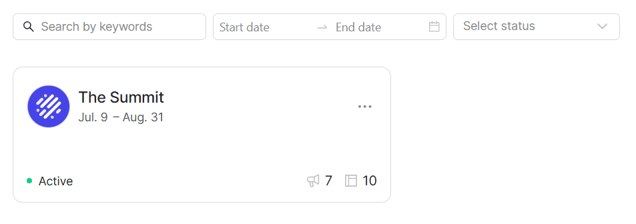
Each event card shows the event name, dates, and your current status with the event. You will also see two icons in the bottom-right corner:
- Speaker icon showing how many campaigns you’ve created for this event.
- Layout icon showing how many landing pages are linked to this event.
The three-dot menu on each card gives you access to actions available for that event.
Event statuses
Events can move through several statuses depending on where you are in the application process.
When browsing the Events catalog, you may see events marked as Available. This means you can submit a new application to participate. After applying, the event status changes to On Review while the organizer reviews your request.
If your application is approved, the event becomes Active and appears in your main events list. If the organizer decides not to proceed, the status changes to Rejected. You can also cancel your own application while it is under review. In this case, the status becomes Cancelled.
Some events may appear as Invitation Pending if an organizer has invited you directly but you haven’t accepted yet.
Once you are actively participating in an event, you can archive it from your main list. Archived events remain visible and keep all associated data, but you cannot run ads for them. An organizer can also temporarily pause your participation. Such events are marked as Suspended.
Main actions
On the My events page, you can take several important steps to manage your participation in events:
Apply to an event
- Go to the Events catalog.
- Find an event with the Available status.
- Click Apply — the status will change to On Review in the catalog, and the event will appear in your events list.
- Once the organizer approves your request, the status becomes Active.
Cancel an application
- Find the event with the On Review status.
- Click Cancel application in the card menu or in the Events catalog.
- The event status will return to Available. You can apply again later.
Archive an event
- Find an Active event.
- Open the card menu and select Archive — this hides the event from your active list but keeps all associated data.
- To bring it back, go to the My events page, filter by Archived, and click Unarchive on the event card.
Event workspace
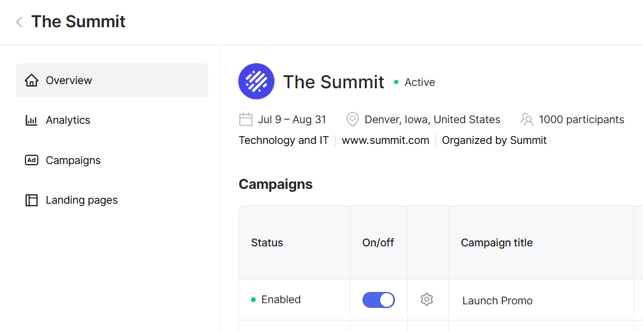
To open an event’s workspace, click its card in the list. It includes:
- Overview – key event info and a quick table of your campaigns for this event.
- Analytics – performance charts and metrics based on your campaigns for this event.
- Campaigns – your advertising campaigns for this event.
- Landing pages – landing pages linked to your ads.
Events Catalog
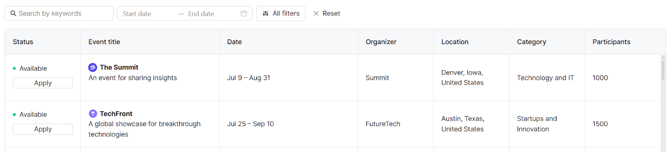
To explore new events and submit applications, open the Events catalog. It provides keyword search, date range controls, and advanced filters for location, category, expected participant count, and publication status.
You can click an event name to view its full description, dates, and location. When you are ready, click Apply to send your application.
Next steps
- Learn how to create your first campaign.
- Design a landing page that matches your ad creative.
- Track performance in the Analytics section to measure impressions, clicks, and conversions.